Performance and Memory
Umamo is written in Java and Kotlin, so it can use only as much memory as its Java runtime allows. A large model with many layers and large texture atlases needs a lot of memory, and an export takes more memory than editing does. This page explains where the limit is specified, what Umamo does when it runs out, and how you can change resource limits.
How Much Memory Umamo Gets
How you run Umamo |
The memory limit |
|---|---|
An installer, or a portable archive ( |
Half of the memory of the computer. |
The |
Java’s own default is a quarter of the memory of the computer. When that would give Umamo less than 3 GB, the |
The second start happens before the window opens. It does not happen when you started the .jar with a memory limit of your own, such as -Xmx8g, when a debugger is attached, or when Java does not say which program is running it. A limit that you give is always kept.
To start the .jar with half of your memory yourself, use a terminal:
java -XX:MaxRAMPercentage=50 -jar umamo-<target>-<version>.jar
To set your own limits instead, use the -Xms and -Xmx options:
java -Xms512m -Xmx2g -jar umamo-<target>-<version>.jar
The log records the limit that every session got. Near the top is a line such as started from the jar umamo-linux-x64-0.5.0.jar; the heap may grow to 8192 MiB. See Reporting Bugs.
How much memory do you need? The web site gives 16 GB as the minimum and 32 GB or more as the recommended amount. 8 GB has been tested, but heavy models with many layers and large atlases can run out of memory. A model with three 8192 by 8192 pixel atlas pages needs about 1.3 GB just to export. The puppet that is open, the viewport, and everything else need memory on top of that. See System Requirements.
Out-of-Memory Alerts
Two alerts are about memory.
At launch, a .jar that could not be given enough memory shows an alert once it has started:
Umamo has been allocated to use at most 2.0 GB of memory. Large files, especially exports, can cause Umamo to run out of memory and crash. To allocate up to 50% of the system memory for Umamo: Quit and run this command from a terminal: and the command, which has the name of your .jar in it.
This happens when Umamo could not start itself again. Use the command. Don’t Show Again turns the alert off for good. The installed versions already use up to half of your computer’s installed memory, so they never show it.
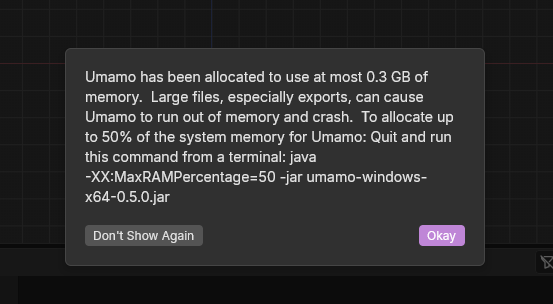
A standard out-of-memory message when launching Umamo.
During an export, a CMO3 or MOC3 export that runs out of memory stops and tells you so:
Could not export name: Umamo ran out of memory. The open document is unaffected.
For the .jar the alert also names the limit it ran out of, and gives the command that allows half of your memory: Save, quit, and run this command from a terminal. Your open puppet file is not changed.
An image export that is too large has a message of its own: There was not enough memory for a 12000 × 9000 px image. Try a smaller scale. A picture needs 4 bytes for every pixel, so the biggest picture that the dialog allows, 16384 pixels each way, needs about a gigabyte.
If memory runs out anywhere else, such as while a very large puppet file is opening, Umamo has no alert for it, and it can crash. Save often, and see Backups and Data Safety.
When an export runs out of memory:
Save your puppet file, quit Umamo, and start it again with more memory, as above.
Close other programs. The limit is a share of the memory of the computer, and other programs use the rest.
Viewport Cost
The viewport is drawn by the graphics card, and the model is drawn at twice the resolution of the screen and scaled down, so that its edges are smooth. You can turn off the default Supersampling toggle to preserve performance, especially on a computer with a weak graphics card, or with only software rendering, such as Windows Subsystem for Linux.
- Supersampling (2x Render Quality)
In , in the Viewport category. It is on by default. With it off, the viewport is drawn at its own size, which is cheaper and a little rougher.
- Keep supersampling while resizing panels
Only when supersampling is on. Turn it off to draw at the plain size while you drag a splitter, so that resizing stays smooth, and the smooth edges return when you stop.
See Settings.
Other things that help:
Turn off the overlays that you do not need. The wireframe, the lattices of deformers, and the grid are all drawn on top of the model. See Overlays.
Close areas that you do not use. Each 2D Viewport or UV Editor area draws its own view.
Lower History Steps in the Interface category of Settings. Umamo keeps that many undo steps in memory, 200 by default and between 1 and 1000. A lower number keeps fewer. It never removes the current step or the steps that you can redo. See History.
Large Puppets
Umamo is built for large models using asynchronous background process and designed to stay responsive when editing. Some things to keep in mind:
Opening, saving, and exporting take time. Umamo does this one by one. Another open, or New, while one is running is refused with a notice, and New, Open, and quitting wait while a CMO3 or MOC3 export runs.
Texture atlases are a large part of the cost. Pages that are 8192 pixels wide take four times the memory of pages that are 4096 wide. The atlas options of Atlas Packing set the page size.
Artwork larger than the graphics card can hold is scaled down for the viewport, and not refused.
Save before you start something large, such as reloading all artwork, repacking the atlas, or generating meshes for the whole puppet. Each one can take a while on a big model.
A MOC3 has limits that an UMA file does not. A mesh with more than 65,536 vertices is left out of a MOC3 export. See Export Reports and Notices.
If a particular model is slow or fails, report it with the model if you may share it. See Reporting Bugs.
See also