First Launch
The first time Umamo starts it will open the Quick Setup dialog window that will ask you to set your common preferences. This page describes what you will see and how to open your first file.
Quick Setup
Quick Setup opens over the window the first time Umamo launches when there is no settings file created. It shows the splash picture with the version of Umamo and the name of the artist, followed by a few common settings. Each setting takes effect immediately and is saved as soon as you change it. Click Continue or click outside the window to close it.
To open it again, choose or you can change the settings later in , in the Interface category.
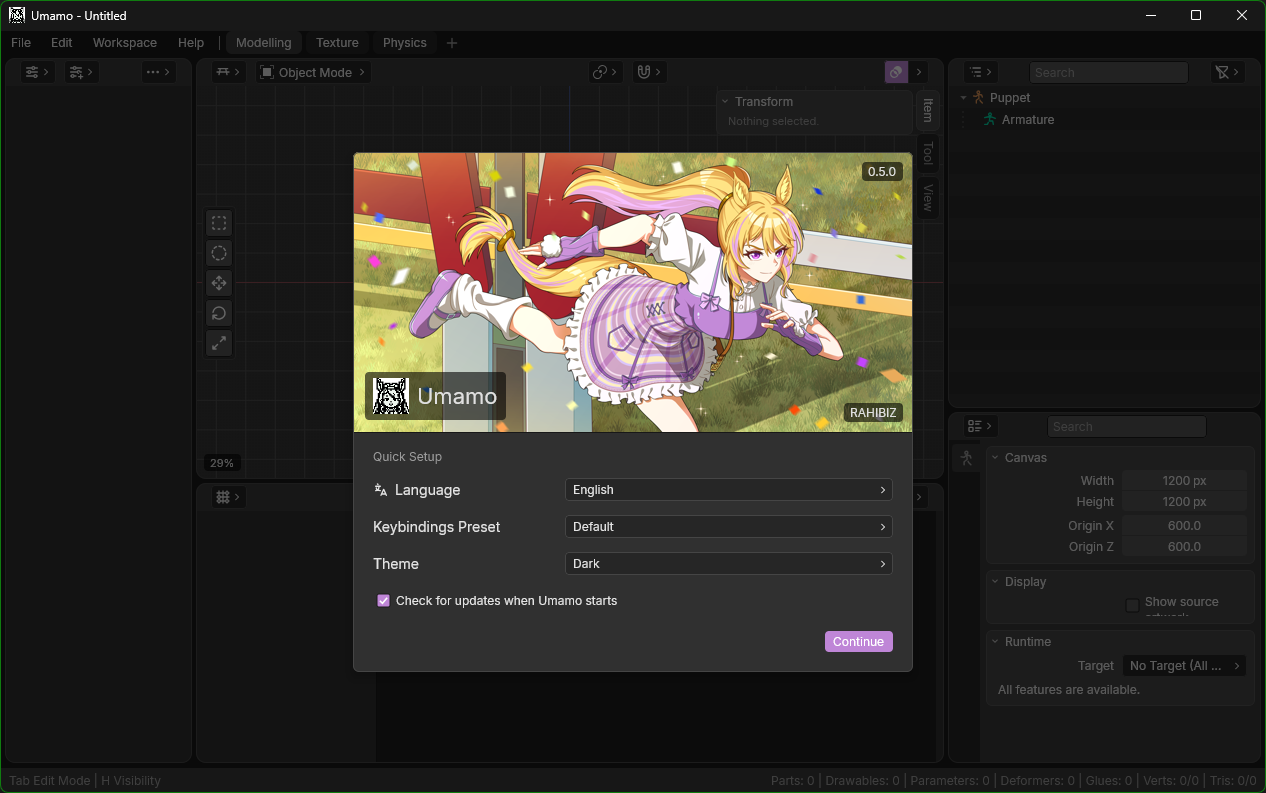
Quick Setup.
Language
Sets the language of the interface. Umamo will pick from the first of your system’s preferred languages. If a translation is not available it will default to English.
If you would like to help translate Umamo into another language, see Translations.
Keybindings Preset
Chooses which set of keyboard shortcuts to start from.
- Default
The shortcuts that this manual describes.
- Cubism
A smaller set for people who come from the Cubism Editor. We recommend using the default keymap, but the Cubism keymap is provided for convenience. See Coming from Cubism.
- Blender
For people who come from Blender. The keymap is nearly identical to the default, but with a few changes such as the Command Palette being set to F3 and Frame All set to Home.
You can rebind any shortcut later in the Keybindings category of Settings. See Keymap for what the presets are.
Theme
Chooses between Dark, Light, or System which will follow the setting of your operating system. The default is Dark.
Check for Updates
Check for updates when Umamo starts is turned on by default. When it is on, Umamo will check GitHub once a day whether a newer release is available and inform you when one is available. This check is the only feature in Umamo that uses the network. Use to check for an update manually. See Updating Umamo.
A New Puppet Opens
Umamo always starts to a new puppet. If you start it without a file, it will be a new empty puppet, the same as one created with . The window title will show Umamo - Untitled indicating that it is a new unsaved puppet file.
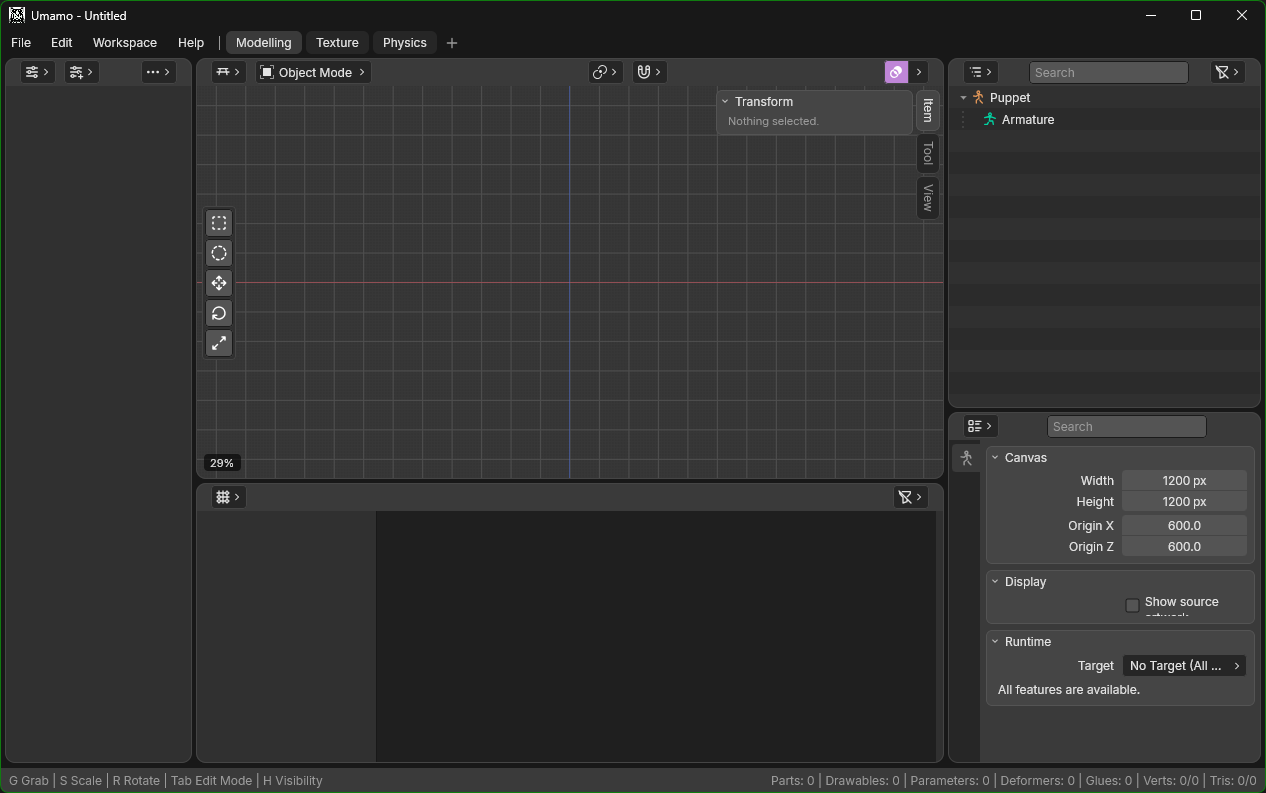
Umamo after the first start with an empty puppet in the Modelling workspace.
The window is divided into areas and each area shows one editor. Umamo starts in the Modelling workspace:
The Parameters editor is on the left.
The 2D Viewport, where the model is drawn, is in the middle, above the Keyform Sheet.
The Outliner is on the right, above the Properties editor.
The tabs along the top switch between workspaces. There are three default workspaces: Modelling, Texture, and Physics. The viewport is empty and the editors have nothing to show because the puppet does not have any content yet. Adding artwork or importing a model will fill them with puppet contents. See Window System and Workspaces.
Opening Your First File
Umamo can open or import several different types of files:
A model made in Cubism. Use for a Cubism Editor project or for a baked model. The imported model will replace the empty puppet. See Cubism Interchange.
Layered artwork. Use to add a PSD, CLIP, KRA file, or a flat image to the puppet. Umamo will automatically create a drawable and mesh for each layer. See Importing Artwork.
An UMA file. Use to open an UMA file, which is Umamo’s native format. See UMA Files.
You can also drag a file onto the window. The first file in a drop decides what happens with the whole set of dropped files. Artwork will be added to the puppet and puppet files will be opened.
Warning
Umamo is alpha-level software and does not save your puppet files automatically. Work on copies of your files and use often to save your file. See Backups and Data Safety.
Low-Memory Notice
If you run the .jar build and Java has given it too little memory an alert will open when Umamo starts. It states how much memory Umamo has and provides a command that starts it with half of your computer’s memory. The installers never show this alert. Don’t Show Again turns it off permanently. See Performance and Memory.
See also