Exporting
Exporting writes a new file from the open document and leaves the document as it is. Umamo can export a model as a CMO3, or as a MOC3 with its sidecar files, and can export a picture of the posed model as a PNG image.
The Export Menu
The submenu has three rows:
Row |
Command palette |
Writes |
|---|---|---|
Export CMO3… |
A Cubism Editor project. See Export CMO3. |
|
Export MOC3… |
A baked model with its sidecar files. See Export MOC3. |
|
Export Image… |
A PNG image of the posed model. See Export Image. |
None of them has a default shortcut. A row is greyed out while there is nothing to export with it.
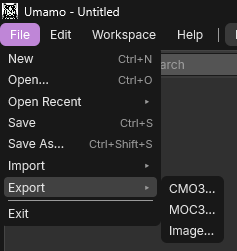
The Export submenu of the File menu.
Some things are the same for every export:
An export is not a save. The document is not marked as saved, its title does not change, and the UMA file is not touched.
The file picker suggests the name of the document’s UMA file without its extension. If there is none, it suggests the name of the file that the document came from, or
Untitled. The picker adds the extension.The status bar shows
Exporting model…orExporting image…while the file is written, andExportedwith the name of the file when it is done. You can keep working in the meantime.Only one model export runs at a time. Starting another CMO3 or MOC3 export shows the notice
An export is already in progress.Anything that replaces the open document or quits Umamo, such as New and Open, waits for a running model export to finish and showsWaiting on export to finish…in the status bar.A CMO3 and an image are written to a temporary file first and moved into place when they are complete, so a failed export leaves the old file as it was. The files of a MOC3 are written straight into place.
The native file picker asks before it replaces the file that you picked. A MOC3 export also writes other files beside it and has a warning of its own for those. See Overwrite Warning.
Export CMO3
Reference
- Menu:
Export CMO3 asks where to put the file, writes the .cmo3 file, and then shows the export report if there is anything to report. It has no options.
How the file is built depends on where the document came from. See Cubism Interchange.
Export MOC3
Reference
- Menu:
Export MOC3 bakes the document into a runtime model. It first shows the Export Options dialog. When you confirm it, the file picker asks where to put the .moc3 file, and Umamo builds and writes the files that make up the model.
Export Options
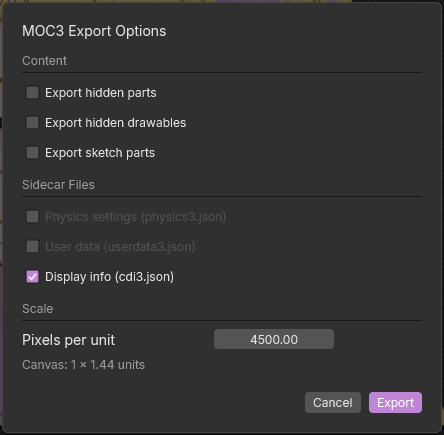
The MOC3 Export Options dialog.
Option |
Default |
Effect |
|---|---|---|
Export hidden parts |
Off |
Export parts that are hidden. Turn this on to export parts that are hidden by parameters. |
Export hidden drawables |
Off |
Export drawables that are hidden. Turn this on to export drawables that are hidden by parameters. |
Export sketch parts |
Off |
Parts marked as guide images are left out, because they are only used for drawing and are not part of the model. Turn it on to write them. |
Physics settings (physics3.json) |
On |
Write out the physics settings. |
User data (userdata3.json) |
On |
Write out the user data information. |
Display info (cdi3.json) |
On |
Write out the file containing parameter, part, drawable, and parameter group display names. |
Pixels per unit |
See below |
The scale of the model file. It is a number from 1 to 1,000,000. |
Pixels per unit says how many pixels of the canvas make one unit of the model. It starts at the scale the model was imported with. Otherwise it starts at the width of the canvas in pixels, so that the canvas is one unit wide. Under the field, the dialog shows the size of the canvas in units at the scale that you entered.
Umamo remembers the choices until you quit, so the next dialog opens with them, but it does not save them to your settings. The checkboxes carry over to other documents. The scale is kept for the same document only, and a different document starts with its own. The choices are remembered once you confirm the dialog, even if you then cancel the file picker.
Files Written
A baked model is a group of files. Export MOC3 writes them all beside the file that you picked and creates any folders that it needs. The name is the name that you gave in the file picker.
File |
Notes |
|---|---|
|
The model. |
|
The manifest that lists the other files. |
|
The display information. |
|
The atlas pages. The folder is named after the largest width or height of any page in pixels, such as |
Overwrite Warning
The file picker only asks about the .moc3 file that you pick. The rest of the group is written beside it without a question, so Umamo checks for existing files first. If any of the files that it is about to write already exist, a warning will list every one of them:
Exporting will overwrite 3 existing file(s): name.model3.json, name.cdi3.json, name.4096/texture_00.png
Choose Overwrite to replace them or Cancel to write nothing. This is the only question that Umamo asks on top of the file picker’s own.
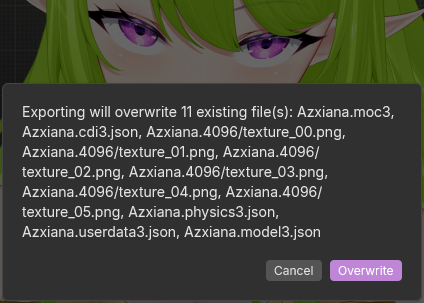
The warning that lists the files an export would replace.
Version and Stripping
The Runtime Target of the document decides which MOC3 format version is written. The files of an older version have no file sections for newer features, so Umamo strips any feature that the version does not support from the exported file. For example, a Cubism 4.0 target strips blend shapes, colors, and part composites. The open document retains those features and the export report will list what was removed. See Runtime Targets and Cubism Versions.
Export Image
Reference
- Menu:
Export Image saves a picture of the posed model as a PNG image. The exported image will be captured from the currently active 2D Viewport using the selected export options.
The dialog has options for the render region, scale, and background.
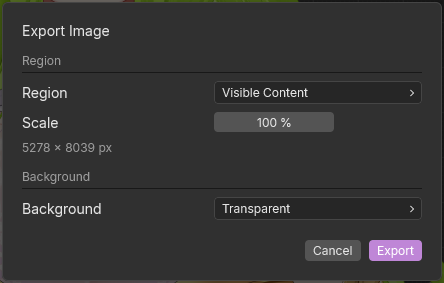
The Export Image dialog.
Region
Region |
What the picture frames |
|---|---|
Viewport |
Exactly what the current 2D Viewport shows with the same pan and zoom. If a 2D Viewport is not shown in the current workspace this option will be hidden. At a scale of 100% the image matches the viewport pixel for pixel. |
Canvas |
The canvas of the document. This region is only offered when the document has a defined canvas. |
Visible Content |
The drawables that are shown in the current pose, cropped tightly around them. This is the default. |
Scale
The scale is a percentage from 1 to 1600. For Viewport, 100% is the size of the viewport on screen. For Canvas and Visible Content, 100% is one pixel for each unit of the canvas. The size of the picture is rounded up to whole pixels.
The dialog shows the result as width × height px. Image exports are limited to 16384 pixel in both dimensions. If the export is too large then an error message will be displayed and the Export button will be disabled. Export is also disabled when there is nothing to frame and the dialog will note Nothing is visible to capture.
Background
- Transparent
Every pixel that the model does not cover is fully transparent. This is the default.
- Solid Color
A flat color, set in the Color field as a hexadecimal value. It may include an alpha value so that the background can be translucent. The color is kept while you switch to another background.
- Viewport Grid
The grid and the world axes, as the viewport shows them. See Overlays.
Umamo remembers these choices for every document until you quit.
Export Reports and Failures
When a CMO3 or MOC3 has been written and it could not export something from the document an alert will open with the export report. The report will list any issues that occurred during the export so that you can act on them. See Export Reports and Notices.
An export that fails shows Could not export with the name of the file and the reason.
If there was not enough memory, the alert says that Umamo ran out of memory. See Performance and Memory.
An image export can also fail with
The viewport renderer could not draw the image., or withThere was not enough memory for afollowed by a size in pixels. In that case use a smaller scale.Something unexpected stopped it; the details are in the log.Open the log in Logs and include it if you report the problem. See Reporting Bugs.