UMA Files
An UMA file, with the extension .uma, is Umamo’s native document format. It holds everything that you build in Umamo: The puppet, the texture atlas, the list of artwork files that the puppet was made from, and the state of the editor when you saved.
and work with UMA files and nothing else. CMO3 and MOC3 files are brought in with and written with . See Cubism Interchange.
Warning
Umamo is alpha-level software and does not save your documents automatically. Save often, and keep copies. See Safety and Backups.
The UMA File
An UMA file holds:
The puppet: The parameters and their groups, parts, warp and rotation deformers, drawables with their meshes and keyforms, blend shapes, and glue. The Runtime Target of the document is part of the puppet.
The texture atlas: Every piece of source art as a tile, with its pixels and its place on the atlas pages.
The list of artwork files that the puppet was made from, with the layers that each file held when Umamo last read it. The artwork files themselves are not stored, so they must stay where they are for Reload and Relink to find them. See Reloading and Relinking.
A small thumbnail of the model in the pose it was saved in, at most 256 by 256 pixels. Umamo writes one on every save, but a document does not need it to open.
The state of the editor. See What an UMA Remembers.
An UMA file is an ordinary ZIP archive. A ZIP tool can list what is inside it, but there should be no need to change it by hand. The format is documented in docs/format/UMA.md in the source code repository.
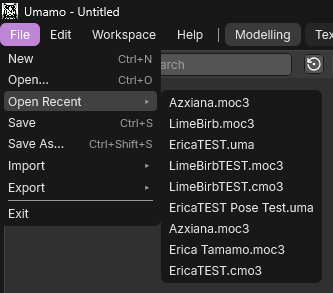
The File menu, with Open Recent expanded.
New, Open, Save, and Save As
New, Open, the imports, and Exit each replace or end the open document. When it has unsaved changes, each of them asks before continuing. See Unsaved Changes.
New
Reference
- Menu:
- Shortcut:
Ctrl-N
New replaces the open document with an empty one. The new document has a canvas of 1200 by 1200 pixels and nothing else. The first artwork that you add with uses the canvas size of the artwork and adds the starter parameters. See Importing Artwork.
Umamo also starts with a new document when you launch it without a file.
If another document is still opening, New is refused and the status bar says Another document is still opening.
Open…
Reference
- Menu:
- Shortcut:
Ctrl-O
Open asks for an UMA file and replaces the open document with it. The file picker only offers .uma files. The status bar shows Opening and the name of the file while a large document is read, and you can keep working in the meantime. If the document you were editing changes while the new one loads, Umamo will ask about unsaved changes again before it replaces the document.
The document opens as it was saved, with the pose, selection, mode, cursors, and views that it remembers. The undo history starts empty.
There are other ways to open an UMA file:
lists the last ten documents that you opened, imported, or saved with the newest listed first. It is greyed out until there is an entry. A file that has since been moved or deleted fails to open and shows an alert.
Drag the file onto the window. See Drag and Drop.
Double-click the file in your file manager, if the installer registered the file type. See File Association.
Start Umamo with the path of a
.uma,.cmo3, or.moc3file as an argument.
Save
Reference
- Menu:
- Shortcut:
Ctrl-S
Save writes the document to its UMA file. The first save of a new document, or of a document that was imported from a CMO3 or a MOC3, asks where to put the file in the same way as Save As. The suggested name is the name of the file the document came from without its extension. For example, Erica.cmo3 suggests Erica. A new document suggests Untitled. Every save after that writes to the same file without asking.
Large documents can take a few seconds to write, and you can keep editing in the meantime. The status bar says Saving… and then Saved with the name of the file. Anything that you change while the file is being written is not part of that save, so the document is still marked as having unsaved changes afterwards. Choosing Save again while a save is running only shows the notice A save is already in progress.
Save is greyed out for a document that opened read-only. See Read-Only Documents and Open Failures.
Save As…
Reference
- Menu:
- Shortcut:
Ctrl-Shift-S
Save As always asks where to put the file. Once saved, the document belongs to the new file: Save writes to it, the window title shows its name, and it appears in Open Recent. The file that the document belonged to before is left as it was.
Use Save As to keep a copy of the document at a point that you may want to come back to.
The first time that you save a document that was imported from a CMO3 or a MOC3, the status bar tells you what the UMA file does not carry. See What an UMA Does Not Carry.
Drag and Drop
You can drop files onto the Umamo window. The first file in a drop decides what happens to the whole drop:
If the first file is layered artwork or a flat image, every artwork file in the drop is added to the open document as source artwork, the same as . See Importing Artwork. Files in the drop that are not artwork are ignored.
Otherwise the first file is opened as the document and replaces the open one, after the usual question about unsaved changes. This works for
.uma,.cmo3, and.moc3files. The remaining files in the drop are ignored.
Ignored files are not reported on screen, but they are listed in the log. See Logs. A file that Umamo does not recognize is reported with the alert is not a file format Umamo recognizes.
Read-Only Documents and Open Failures
An UMA file made by a newer version of Umamo might be incompatible with older versions. When opening a new document that has the possibility of losing data if saved, the document will open as read-only:
An alert says
opened read-onlyand lists the parts that Umamo could not interpret.The window title ends with
(read-only).Save and Save As are greyed out while the document is open. You can still edit the document and export it as a CMO3, a MOC3, or an image.
If you close or replace it with unsaved changes, the only choices are Discard and Cancel, because there is nowhere to save to.
To keep your edits, use Export or update Umamo.
When a file cannot be opened, an alert names the file and says why. The document that was open stays as it was, with its unsaved changes.
Message |
What it means |
|---|---|
Could not read name. |
The file is missing or Umamo is not allowed to read it. |
name is not a file format Umamo recognizes. |
The contents of the file match none of the formats in Format Support. Check that you picked the right file. A |
name cannot be opened in the editor yet. |
Umamo recognizes the format, but it cannot open it as a document. |
Could not open name. The file may be damaged. |
The file is a format that Umamo knows, but reading it failed. |
Could not import name. Its model3.json manifest was not found next to the file. |
A MOC3 import needs its |
Could not import name. A texture referenced by its model3.json is missing or unreadable. |
A MOC3 import needs every texture file that its |
name has no layers with pixels to import. |
An artwork file has no layer with any visible pixel so there is nothing to build a puppet from. |
name was made by a newer version of Umamo and cannot be opened by this one. |
Update Umamo. See Updating Umamo. |
If a save fails, an alert says Could not save with the name of the file and the reason. The existing file will not be overwritten.
What an UMA Remembers
An UMA file reopens the way you left it so that you can continue where you left off.
Each area remembers the following, kept separately for the 2D Viewport and the UV Editor where that applies:
The pan and zoom of the view. An area that you switch between the 2D Viewport and the UV Editor keeps a separate view for each.
Which overlays are on, and the area’s grid. See Overlays.
Whether the toolbar and the sidebar are open, the sidebar’s width and tab, and which of its panels are folded.
The Outliner’s open branches, its filters, and which columns are shown.
The Sources editor’s open rows and filters.
The Parameters editor’s folded groups, open range editors, and the filter for the selected parameters.
The Keyform Sheet’s folded rows, filters, and visible slice.
The tab of the Properties editor and the sections that are folded.
The UV Editor’s choice of texture.
For the document as a whole:
The pose, as the value of every parameter that is away from its default.
The selection, the selected parameters, the mode, and the select mode.
The 2D cursor and the UV cursor.
The pivot point and the proportional editing settings.
What an UMA Does Not Carry
The undo history. A reopened document starts with an empty history.
The artwork files. They are listed by path and are not stored, though the pixels of every tile are.
The layout of the windows and the workspaces. They belong to your settings, not to the document. See Workspaces.
Physics, motions, and animation. Umamo does not support them yet. See Physics.
Data that only Cubism knows about. The first time that you save a document that was imported from a CMO3, the status bar says that the CMO3’s physics, guides, keyform notes, random pose, model state sets, user data, and other editor settings are not carried in the file. For a document imported from a MOC3, the notice names the physics, motions, expressions, user data, and pose.
Umamo keeps that data for as long as the document stays open, so a CMO3 that you export in the same session still contains it. A CMO3 that you export after reopening the UMA file does not. If you need that data, keep the original Cubism files and export from the same session that imported them.
Safety and Backups
Unsaved Changes
The window title shows Umamo, the name of the document, and a * when the document has unsaved changes. Only changes to the model count. Moving a parameter slider, changing the selection, and moving the view do not. Undoing back to the point that was saved clears the marker. Exporting does not clear it, because an export is not a save.
New, Open, the imports, and Exit ask before they replace or end a document with unsaved changes. The window’s close button, the operating system’s quit command, and the back gesture on Android do the same.
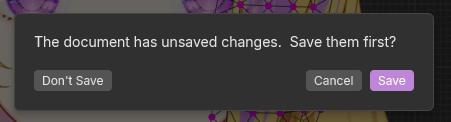
The question that New, Open, and Exit ask when the document has unsaved changes.
The question reads The document has unsaved changes. Save them first?, or Save them before quitting? for Exit.
- Save
Saves the document and then continues once the file has been written. This is the default.
- Don’t Save
Continues and discards the changes.
- Cancel
Cancels the action and keeps the document open.
A document that opened read-only cannot be saved, so the question offers Discard or Quit Without Saving and Cancel instead.
Exit and replacing the document wait for a save or export that is in progress, so that Umamo never quits in the middle of writing a file.
How Saving Is Written
A save writes to a temporary file beside the target and moves it over the target only when it is complete. If Umamo or the computer stops during a save, the previous file is still intact. A stopped save can leave behind a hidden temporary file whose name starts with a dot and contains .tmp-. The next save of the same file will remove it.
File Association
The Windows installer, the Debian and Fedora packages, and the MacOS application register the .uma file type, so double-clicking an UMA file opens it in Umamo. The portable archives do not register anything. See Installing for how to register the type by hand.
On MacOS, a file that you open while Umamo is running replaces the open document, after asking about unsaved changes in the same way as Open Recent.
Known issue
On MacOS attempting to open the application a second time with another file will show an error that the file type is not supported. We’re aware of the issue and working on it.
Opening more than one window on MacOS
Umamo holds one document at a time, and Finder hands a file to the Umamo that is already running. To work on a second document at the same time, start another copy of the application from Terminal with open -n:
open -n -a Umamo
To open a file in the new copy as it starts, put the path of the file after --args:
open -n -a Umamo --args ~/Documents/rig.uma
Each copy is a separate Umamo window with its own document. If Umamo is not in your Applications folder, give the path to Umamo.app in place of its name. The requirement to open a second instance of Umamo this way is due to a limitation of MacOS.
Compatibility with Older Versions
UMA is a new format and it is still changing while Umamo is in development.
Umamo reads UMA files from older versions of Umamo, with one exception(see the warning below), and writes the current format when you save. An older version of Umamo may not be able to read the saved file.
An UMA file from a newer version opens read-only when it needs something this version does not have or it may not open at all. See Read-Only Documents and Open Failures.
Umamo keeps the parts of a file that it does not understand and writes them back unchanged.
Warning
Version 0.5.0 changed how mesh positions are stored. UMA files saved by version 0.4.0 that hold meshes cannot be read by version 0.5.0. Keep a copy of the original artwork or Cubism files that those documents were made from.